Showing posts with label scrapjoy kits. Show all posts

Monday, 3 February 2014

special day 14 february scrapkit

Ct tags for scrapjoy kits using special day 14 february scrapkit this is a fantastic valentines kit
you will simply adore it .you can purchase this scrapkit here at her stores Psp Art
http://www.pspart.nl/ptu-scrapkits
PFD
http://picsfordesign.com/en/catalogue/type/k/auth/ScrapjoyKits/sort/date/per_page/40


         I have used tubes by © Exclusive www.PicsForDesign.com  and © Barbara Jensen, the URL of www.eroticartistgallery.com or www.barbarajensentubes.com 

Tuesday, 14 January 2014

Be My Valentine

ct tags for scrapjoy kits using the awesome scrapkit be my valentine you can pick up this scrapkit here at
Psp Art
http://www.pspart.nl/ptu-scrapkits
AND HERE
PFD
http://picsfordesign.com/en/catalogue/type/k/auth/ScrapjoyKits/sort/date/per_page/40
I have also used tubes from www.picsfordesign.com  tag 1 © Alex_Prihodko
www.PicsForDesign.com   and tag 2  © Ann_Fesenkowww.PicsForDesign.com 


Monday, 30 December 2013

Romance in a fantasy world

Ct Tag for Scrapjoy kits using romance in a fantasy world this is a beautful black and white kit
you can purchase this here Psp Arthttp://www.pspart.nl/ptu-scrapkits PFDhttp://picsfordesign.com/en/catalogue/type/k/auth/ScrapjoyKits/sort/date/per_page/40
 i have also used the art by rene kunert http://www.renekunert.deviantart.com  

Monday, 16 December 2013

Winters paradise

Ct  Tags For Scrapjoy Kits using the beautiful scrapkit called winters paradise this is such a beautiful kit perfect for those wintry scenes .you can purchase the scrapkit here Pfd http://picsfordesign.com/en/catalogue/type/k/auth/ScrapjoyKits/sort/date/per_page/40 Psp Art http://www.pspart.nl/ptu-scrapkits.i have also used te gorgeous tubes by © Zindy S. D. Nielsen http://zindy-zone.dk. and on the other tag a gorgeous tube by © Alex_Prihodko
www.PicsForDesign.com 


Saturday, 7 December 2013

My Christmas angel Tutorial

Ct Tutorial for Scrapjoy Kits Using the Gorgeous scrapkit My Christmas angel which you can purchase here PFDhttp://picsfordesign.com/en/catalogue/type/k/auth/ScrapjoyKits/sort/date/per_page/40 Psp Art http://www.pspart.nl/ptu-scrapkits I have also used the beautiful tube by © Zindy S. D. Nielsen http://zindy-zone.dk.  i am also using a mask
http://mistressv-signaturecollections.blogspot.co.uk/search/label/FTU%20Masks?zx=e1564a24cc378fcf

This tutorial is of my own creation and any resemblance to any other tuts is purely coincidental. This tutorial is for personal use only.you will need a working knowledge of gimp or psp or other similar programmes.
Open your Canvas 800 x800
open a paper of your choice  and copy and paste it to canvas .
now open your mask  and apply it to paper and resize to suit you .
Open element 35 copy and paste on to canvas apply a drop shadow and resize to suit you.
Open element 41 copy and paste on to canvas apply a drop shadow and resize to suit you.
place where you are happy and duplicate it flip the image and place opposite side of the tag
Open element  39 copy and paste on to canvas apply a drop shadow and resize to suit you
Open element 23 copy and paste on to canvas apply a drop shadow and resize to suit you.and place where your happy .
Open element 32 copy and paste on to canvas apply a drop shadow and resize to suit you and place where your happy .
Open any other elements you wish and place on the canvas .
Open your tube copy and paste to canvas resize and place where your happy .
Add a drop shadow
Now merge all layers
add the correct copyright information
and add your name in your chosen font and your done .


Thursday, 28 November 2013

christmas park

Ct Tags for Scrapjoy kits using the very fun and colorful christmas scrapkit called christmas park
you can purchase it here http://picsfordesign.com/.../id_107235_christmas_park.pix
and in one of the tags i have used a beautiful tube by © trinita
www.PicsForDesign.com http://picsfordesign.com/en/catalogue/id_107541_new_year.pix

Sunday, 24 November 2013

Happy Holidays my friends

Ct Tag for Scrapjoy kits http://pspartbymonique.blogspot.nl using the fantastic scrapkit happy holidays my friends this is a sweet christmas kit the elements and papers are just perfect to create that christmas project .
you can  purchase the scrapkit here http://picsfordesign.com/en/catalogue/id_107142_happy_hollidays_my_friends.pix
I have also used an exclusive tube to www.picsfordesign.com

christmas kiki and friends

Ct Tag for berry Applicious http://berryapplicious.com/store/ and scrapjoy kits http://scrapjoykits.blogspot.nl/ i have used the cute little christmas kiki by Alessandra 3D ArtHttp://www.alessandra3dart.com which you can purchase here http://berryapplicious.com/store/index.php?main_page=product_info&cPath=1_235&products_id=1795she is just perfect for those christmas creations i have also used the beautiful scrapkit by scrapjoy kits http://scrapjoykits.blogspot.nl/ scrapkit called happy holidays my friends this scrapkit is so cute .you can purchase this kit here http://picsfordesign.com/en/catalogue/id_107142_happy_hollidays_my_friends.pix


Friday, 4 October 2013

CT Member for scrapjoykits

Ct Tag and Basic Tutorial For Scrapjoy kits I am using the awesome PTU scrapkit little red devil 
You Can Purchase this kit at any of these stores
I Am Also Using the Fantastic Tube By © Marek www.picsfordesign.com
This was my september free gift bonus 
*******************
Little Red Devil Tutorial 
Ok Lets Begin 
Open A New Transparent Canvas 800 x800
Copy and paste element 8 and resize to suit 
 Copy one of the papers 
Use Your Magic wand and click inside the frame 
Copy and paste into selection 
Now Open your tube And Copy  place on  canvas duplicate it 3 times and place selections in frames 
the way you like it.
Reduce the opacity on each raster layer to 65%
Hide original layer for now so you can work on the background with ease 
copy and paste element 28 resize to fit 
add a drop shadow and place
duplicate element and flip horizontal and place opposite
Copy and paste element 5 resize and place on tag
Add a drop shadow 
now place any extra elements on the tag 
and dont forget to unhide original tube and place
add credits 
Merge layers
add name and your done .


Monday, 23 September 2013

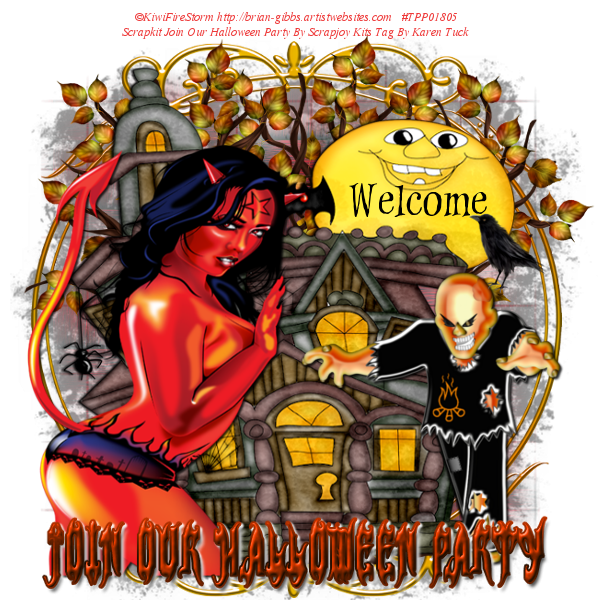
Ct Tag and Basic Tutorial Join Our Halloween Party

Ct Tag and Basic Tutorial For Scrapjoy kits I am using the awesome PTU scrapkit Join our halloween party 
You Can Purchase this kit at any of these stores
This is a wickedly fun kit to play with and perfect for halloween with its spooky but cute elements 
i know you are gonna love this kit.
I have also used the amaing tube by ©KiwiFireStorm http://brian-gibbs.artistwebsites.com  
You can pick up this ptu tube at the psp project store 
This tutorial is of my own creation and any resemblance to any other tuts is purely coincidental. This tutorial is for personal use only.you will need a working knowledge of gimp or psp or other similar programmes.
I Am Using Gimp which is a free programme you can download.

Ok So Open Up Gimp .
* File > new > 600 x600 >ok
You should have a white canvas .
*now go to File > open as layers > go in to the scrapkit and choose a paper i am using paper 2 for this tutorial .
*now go to your tool box and select scale tool and scale the paper to fit the canvas .
*next we can add our mask .
*File > open as layers > select the mask you want to use i am using mask 78 .
*now go to your tool box and select scale tool and scale the mask to fit the canvas .
And make sure it is above the paper layer in your layers box
next right click the paper layer in the layer box and click add layer mask make sure full black transparency is
selected in the pop up box make sure the little black box is highlighted white on your dialogue box .
now click on your mask layer in the layer box and go up to edit then click copy .you can hide the mask layer now by clicking the little eye.
next click on your paper layer go up to edit and hit paste you should now see your mask paper layer you will need to anchor  the floating layer you do this by hitting the little icon that looks like an anchor on your layer box.you can now delete the original mask layer .
Elements used 11,37,37,9,23, 1,
please feel free to use my tag as referance as to where to place the elements and add a dropshadow to them as you place them i have used a drop shadow of black 2,2,2 and a white drop shadow 2,2,2, on different elements  depending on the need .
now open up your tube scale and place on you tag and repeat a drop shadow
add your credits
merge layers and in your chosen font add your sig /name and your done
                                                      heres my tag and some extras for you to snag
                                                  please do not alter my tags or claim them as your own


Saturday, 14 September 2013

Ct Tutorial for Scrapjoy Kits using Killing zombie

Killing Zombie 
I am using the awesome PTU scrapkit killing zombie 
You Can Purchase this kit at any of these stores
This is a wickedly fun kit to play with you can go in so many directions 
with this brilliant kit 
I am also using the awesome work of  © Jennifer Janesko www.janeskofineart.com
You Can Purchase the tube at http://www.cdoestore.com/


This tutorial is of my own creation and any resemblance to any other tuts is purely coincidental. This tutorial is for personal use only.you will need a working knowledge of gimp or psp or other similar programmes.
I Am Using Gimp which is a free programme you can download.

Ok So Open Up Gimp .
* File > new > 600 x600 >ok
You should have a white canvas .
*now go to File > open as layers > go in to the scrapkit and choose a paper i am using paper 5 for this tutorial .
*now go to your tool box and select scale tool and scale the paper to fit the canvas .
*next we can add our mask .
*File > open as layers > select the mask you want to use i am using mask 78 .
*now go to your tool box and select scale tool and scale the mask to fit the canvas .
And make sure it is above the paper layer in your layers box
next right click the paper layer in the layer box and click add layer mask make sure full black transparency is
selected in the pop up box make sure the little black box is highlighted white on your dialogue box .
now click on your mask layer in the layer box and go up to edit then click copy .you can hide the mask layer now by clicking the little eye.
next click on your paper layer go up to edit and hit paste you should now see your mask paper layer you will need to anchor  the floating layer you do this by hitting the little icon that looks like an anchor on your layer box.you can now delete the original mask layer .
* right click the paper layer in your layers box and duplicate layer so it darkens your background
* open up element 39 and scale so it fits the mask and place behind the mask layer
* add a drop shadow filters > light and shadow > drop shadow > 3,3,3 black
*open up element 20 and scale to your desired size and place ( see my tag for placement )
duplicate layer and flip the image place on the opposite side
*repeat drop shadow .
* next open element 42 and scale it down see my tag for placement you might want to duplicate the layer
a couple of times to darken the element and place them along bottom see my tag above .
*now open element 43 and scale see my tag for placement .
* duplicate layer and repeat process
*grab element 20 scale and see my tag above for placement duplicate the layer and flip the image
*repeat a drop shadow on both of them
*open element 30 scale and place on tag drag it below the last element in your layers box
* duplicate  layer filp image and repeat previous steps.
*open element 7 scale see my tag for placement .
repeat drop shadow
* duplicate image and flip it and scale and place
*open your tube scale and place repeat drop shadow
*open element 16 scale and place at bottom in fron of tube
repeat drop shadow
*open element 33 scale and place on canvas see my tag
*duplicate layer and flip image then  place on opposite side
*repeat drop shadow
*open element 3 scale and place on canvas see my tag
*duplicate layer and flip image then  place on opposite side
*repeat drop shadow
*open element 2 scale and place on canvas see my tag
*duplicate layer and flip image then  place on opposite side
*repeat drop shadow
*open element 32 scale and place on canvas see my tag
*duplicate layer and flip image then  place on opposite side
*repeat drop shadow

Now we need to add our credits
merge all layers
add your name in your chosen font and your done i hope you enjoyed my tutorial heres some snags for you but please DO NOT ALTER MY WORK .